Email Setup
Hi there and welcome to your new email account! I’ve included all the gory details below that should help you to access your email via a browser or your favourite client. If you have any trouble, please contact me at admin@hatherop-allotments.org.uk.
Cheers,
Mark
So the email you receive should have included:
- Your new email address
- The password to go with your email address
- A link to this page
These are the only things you need in advance! Everything else is listed below.
If you’re an experienced email person, then the information below might be all you need. If not, please keep going for specific instructions.
|
Username |
Email address provided in your welcome email |
|
Password |
Initial password provided in your welcome email |
|
Incoming Server |
mail.hatherop-allotments.org.uk |
|
Outgoing Server |
mail.hatherop-allotments.org.uk |
You can access your Hatherop email account from any browser. Just go to http://mail.hatherop-allotments.org.uk:2096/.
Note: The :2096 on the end is important. If you leave it out you’ll be redirected to the main website.
Once there you’ll see a login prompt like this.
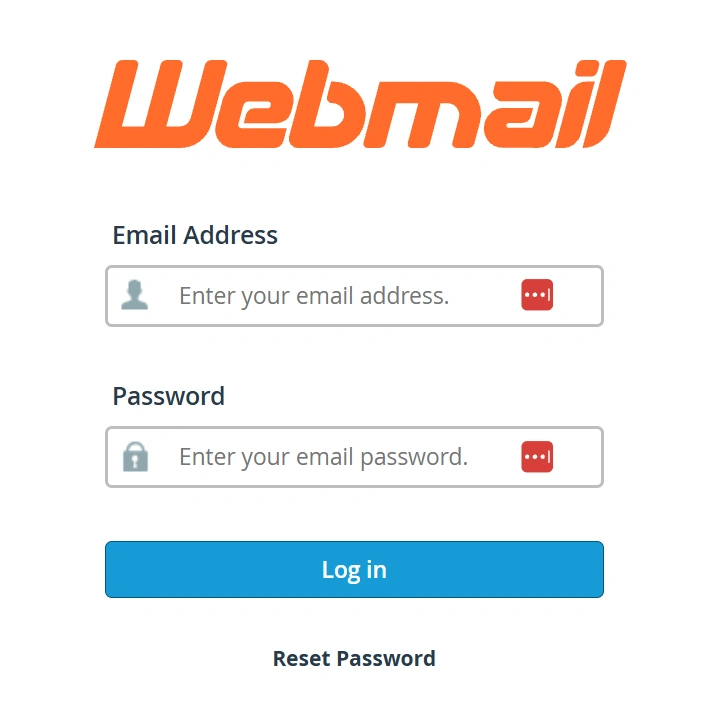
Use the email address and password provided. You can also use this to reset your password if needed (more on that below).
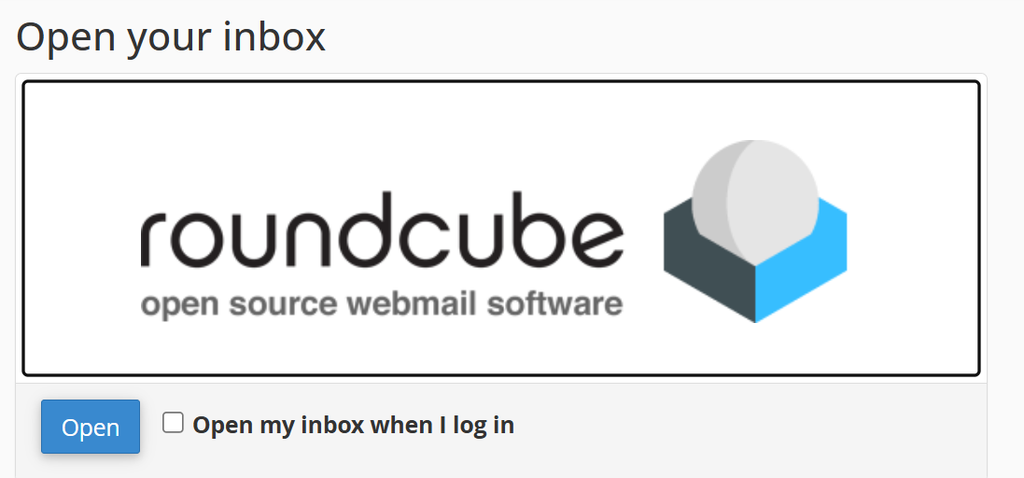
Select Open to get to your email.
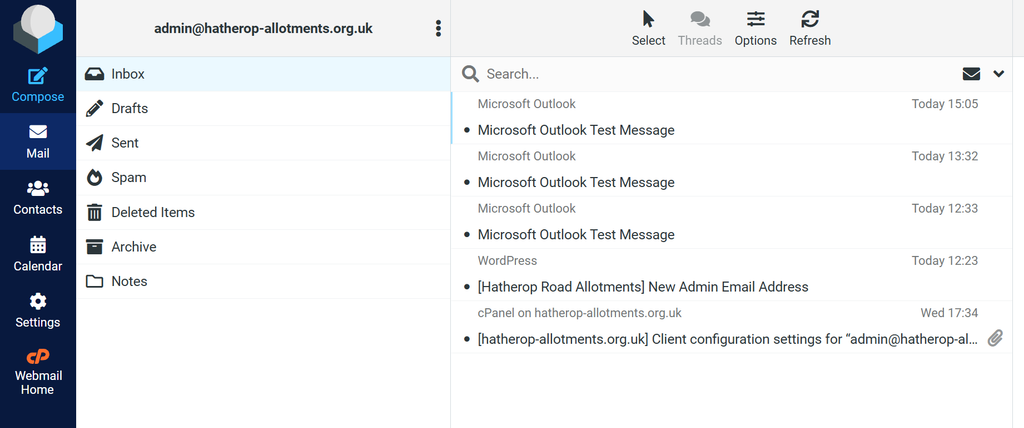
If you have your current password but want to change it then first log into the web mail client (above).
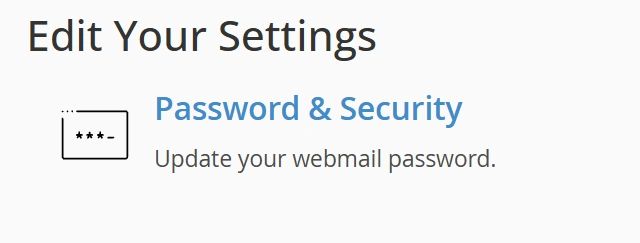
In the main menu select Password and Security.
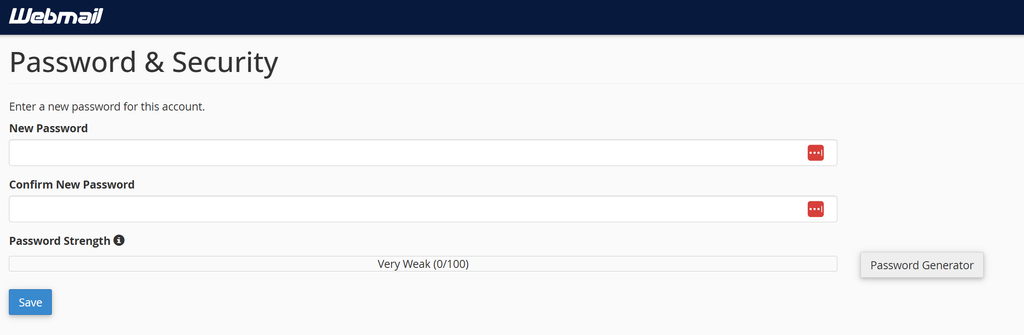
Type in your new password twice and select Save.
If you’ve forgotten your password you can reset it using the following steps.
Go to http://mail.hatherop-allotments.org.uk:2096/.
Select Reset Password.
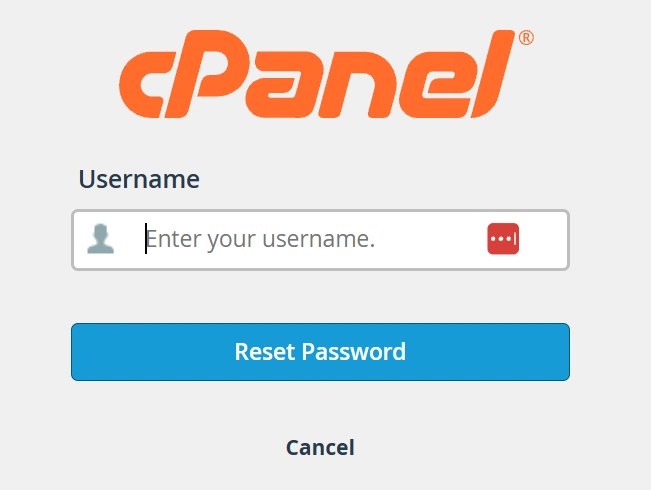
Enter your @hatherop-allotments.org.uk email and select Reset Password.
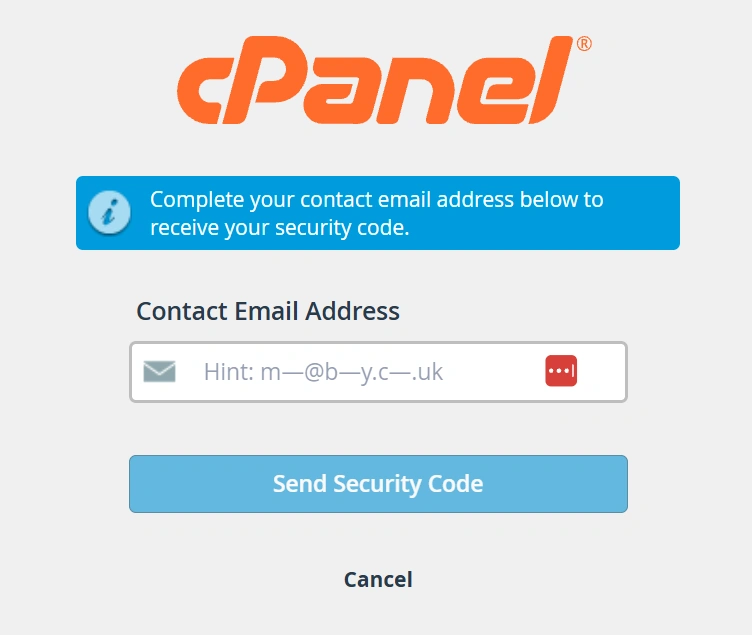
Type in your home email address (as hinted at in the box). Select Send Security Code. You’ll shortly receive an email on your home email address that looks like the one shown below.
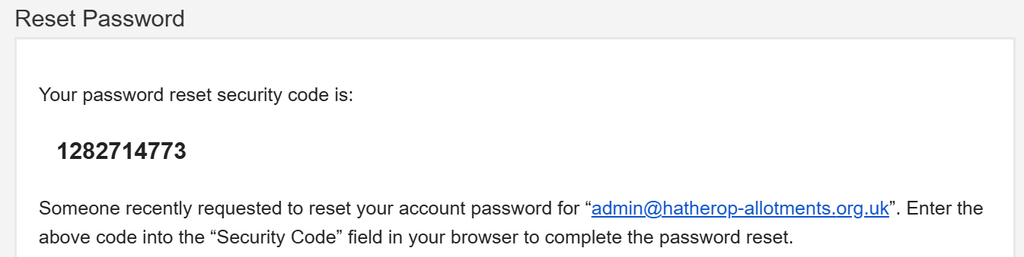
Copy the code into the security prompt and select Submit.
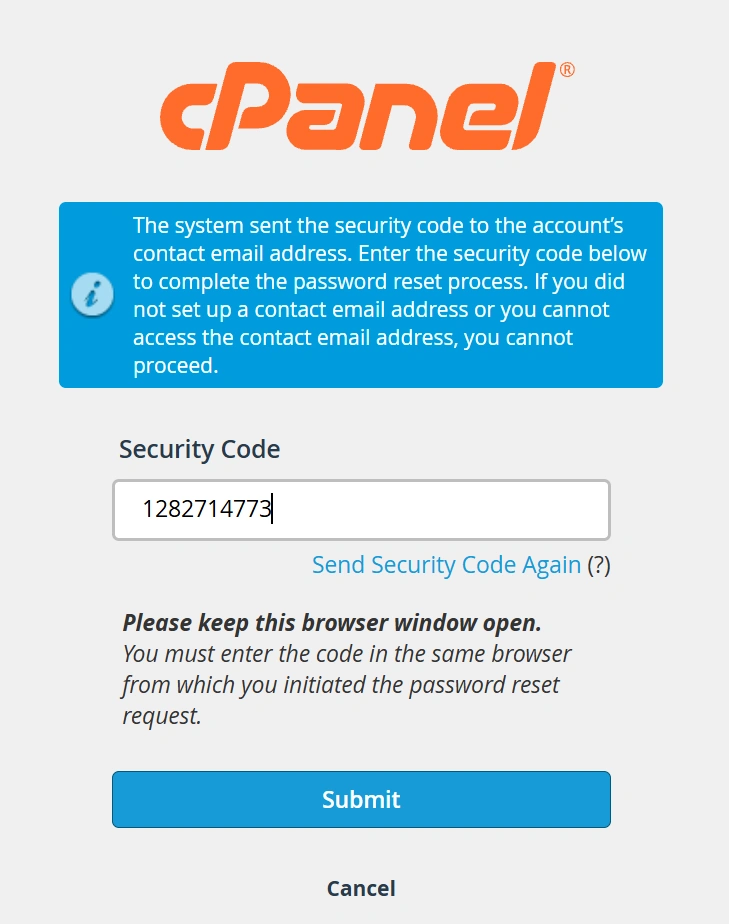
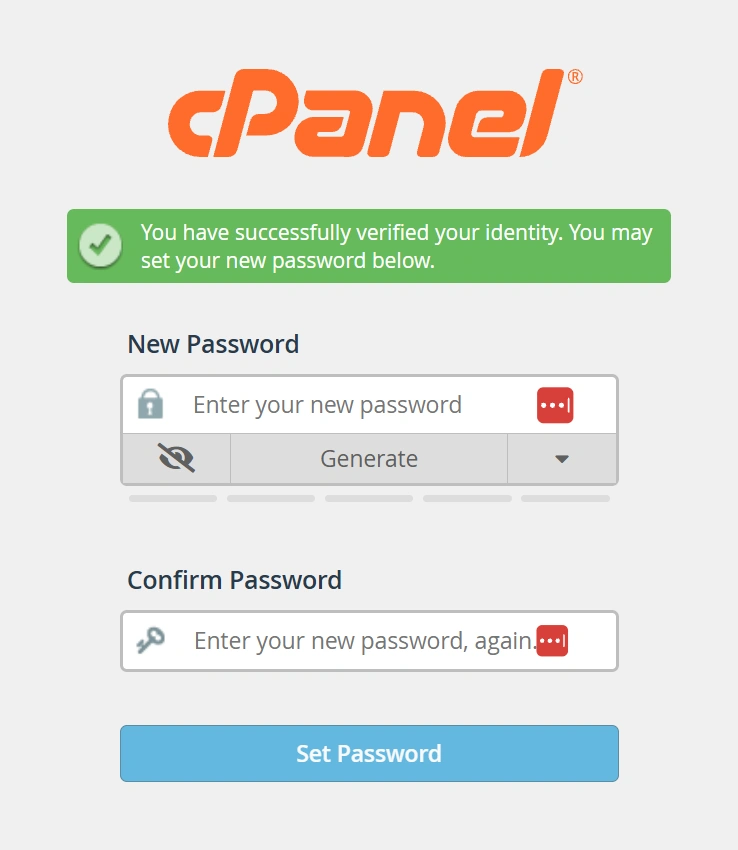
Enter and confirm your new password and then press Set Password.
If you have an iPhone or iPad, you can access your email using Apple Mail alongside any other email accounts you have.
Go to Settings/Apps/Mail.
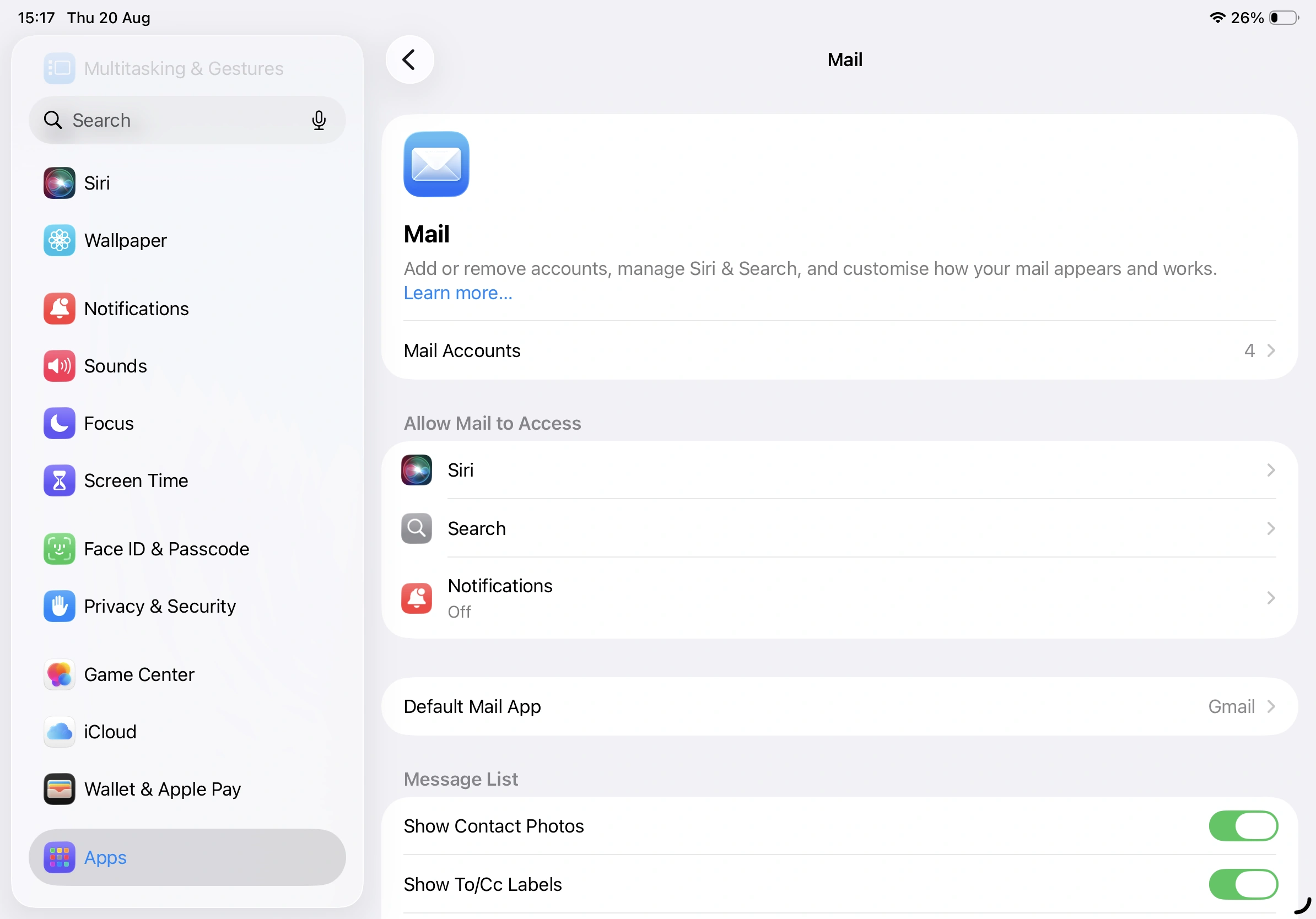
Select Mail Accounts and then Add Account.
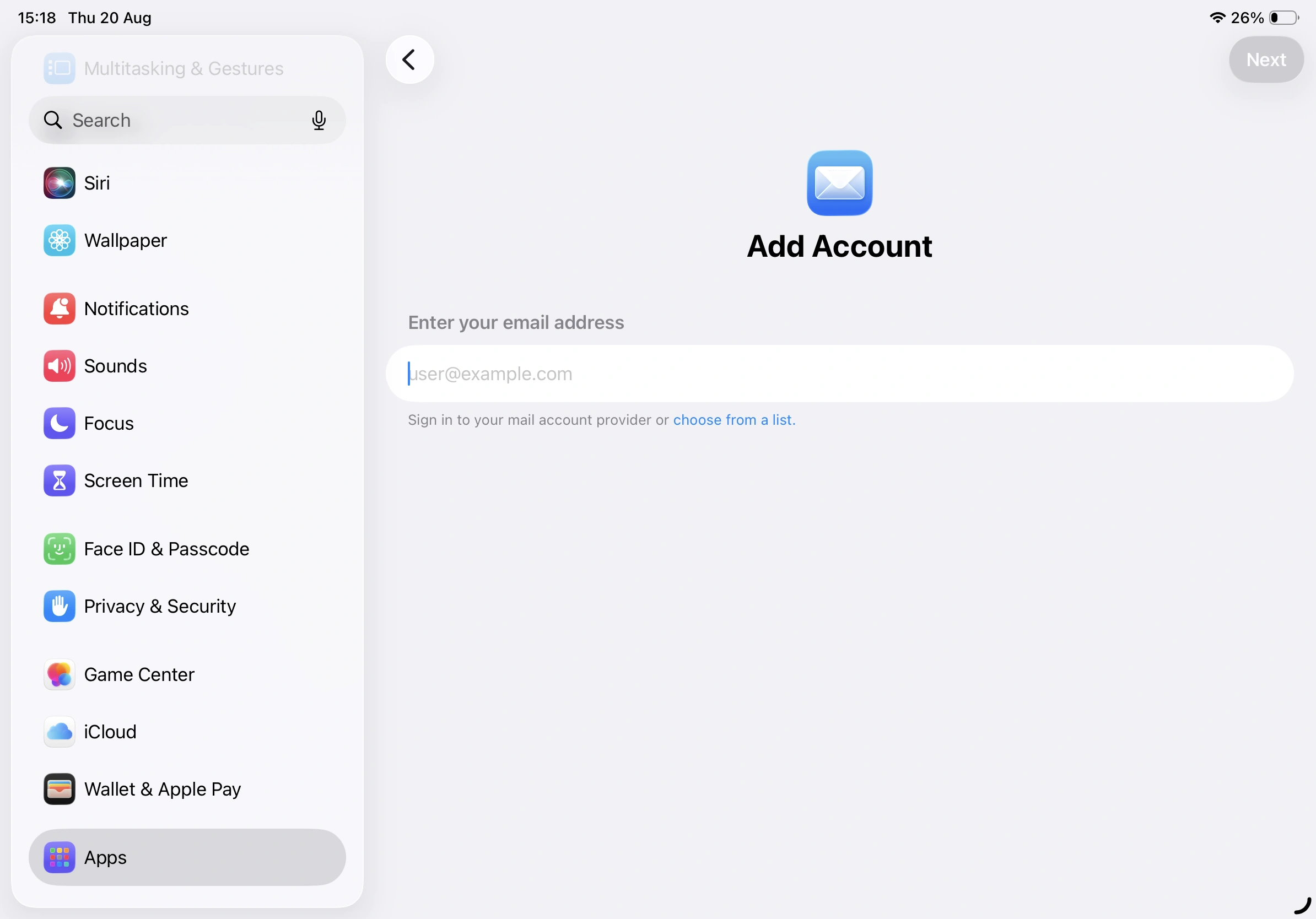
Enter your email address and select Next.
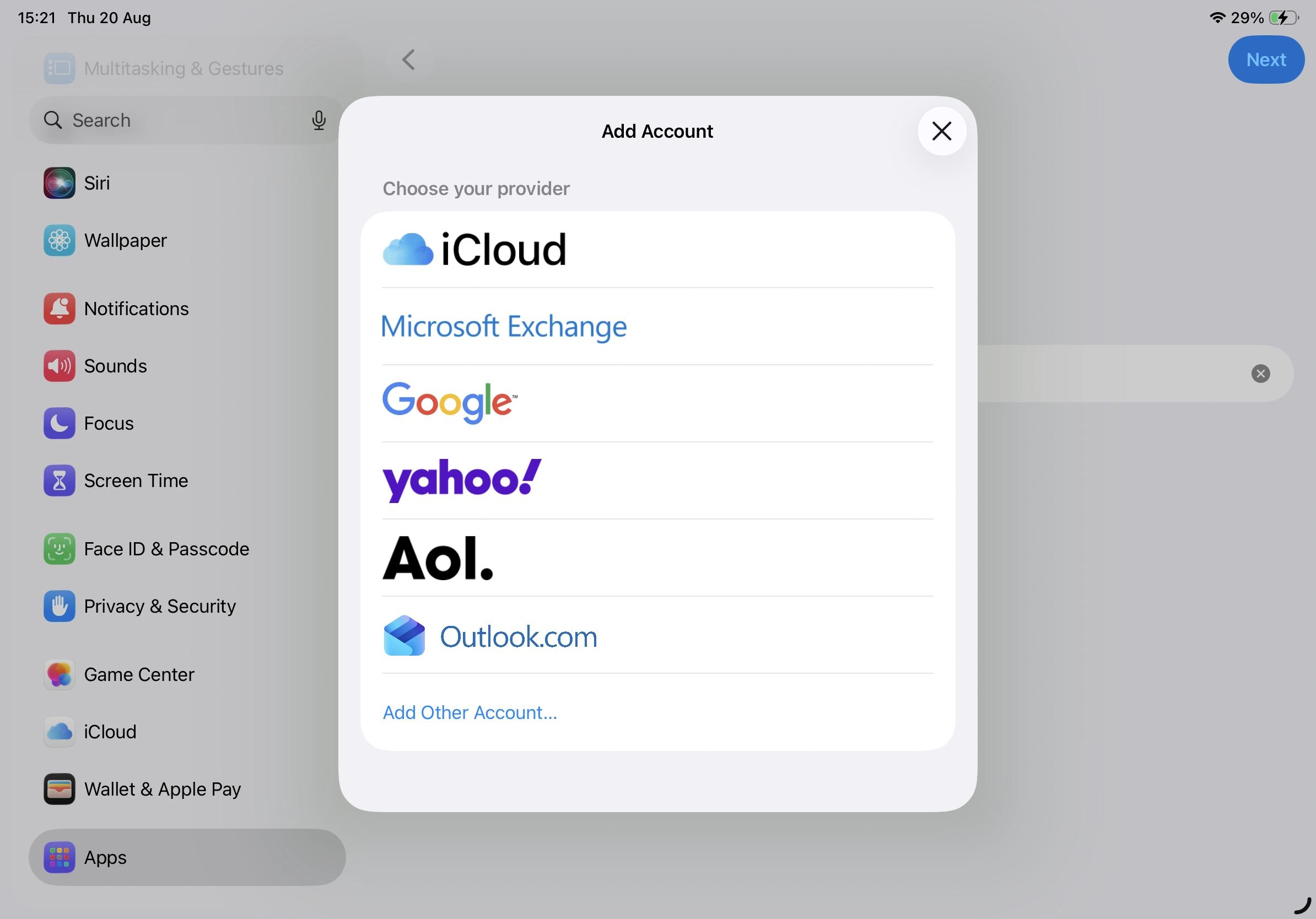
Select Add Other Account and then Mail Account.
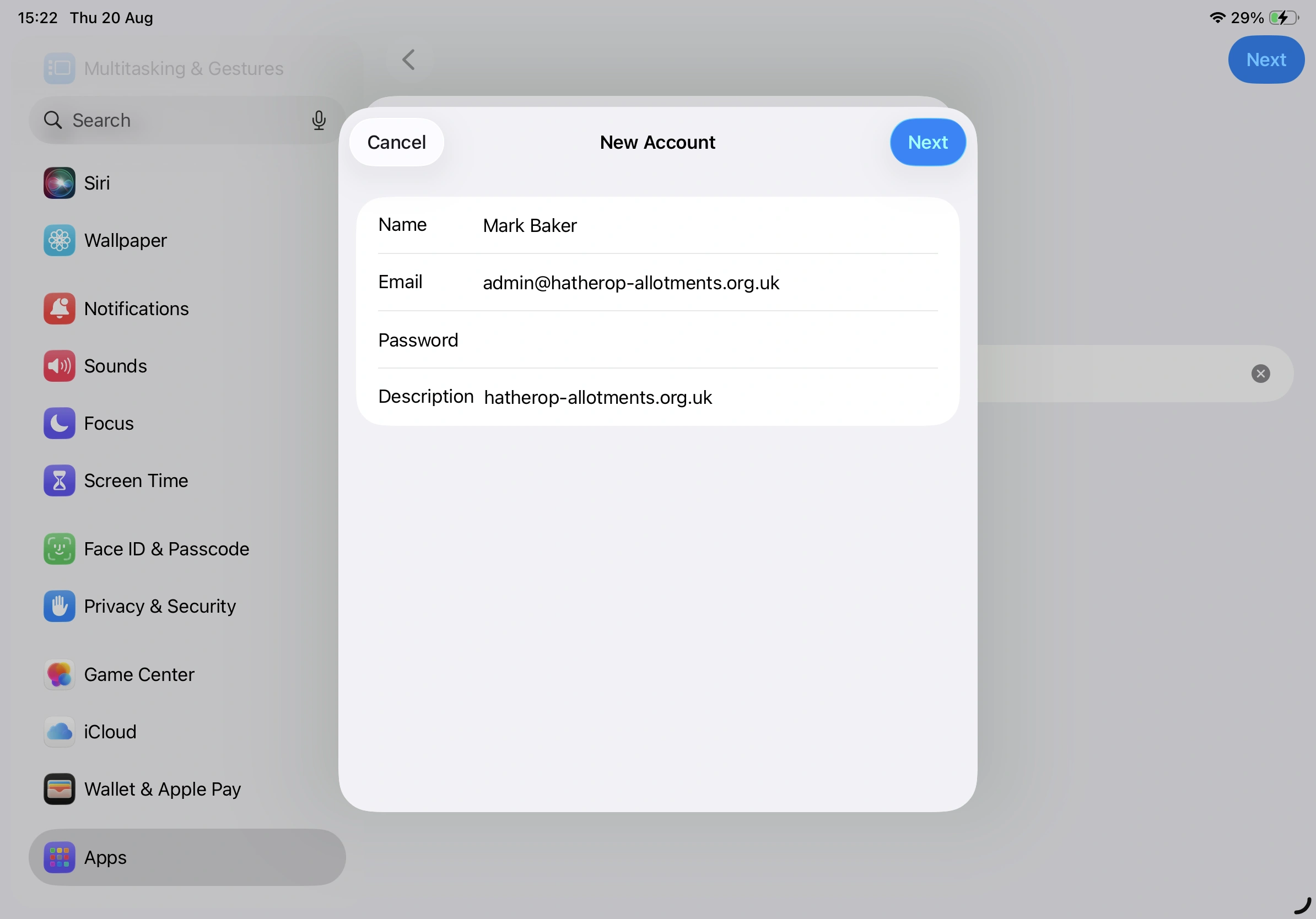
Put in your Name and Password and then select Next.
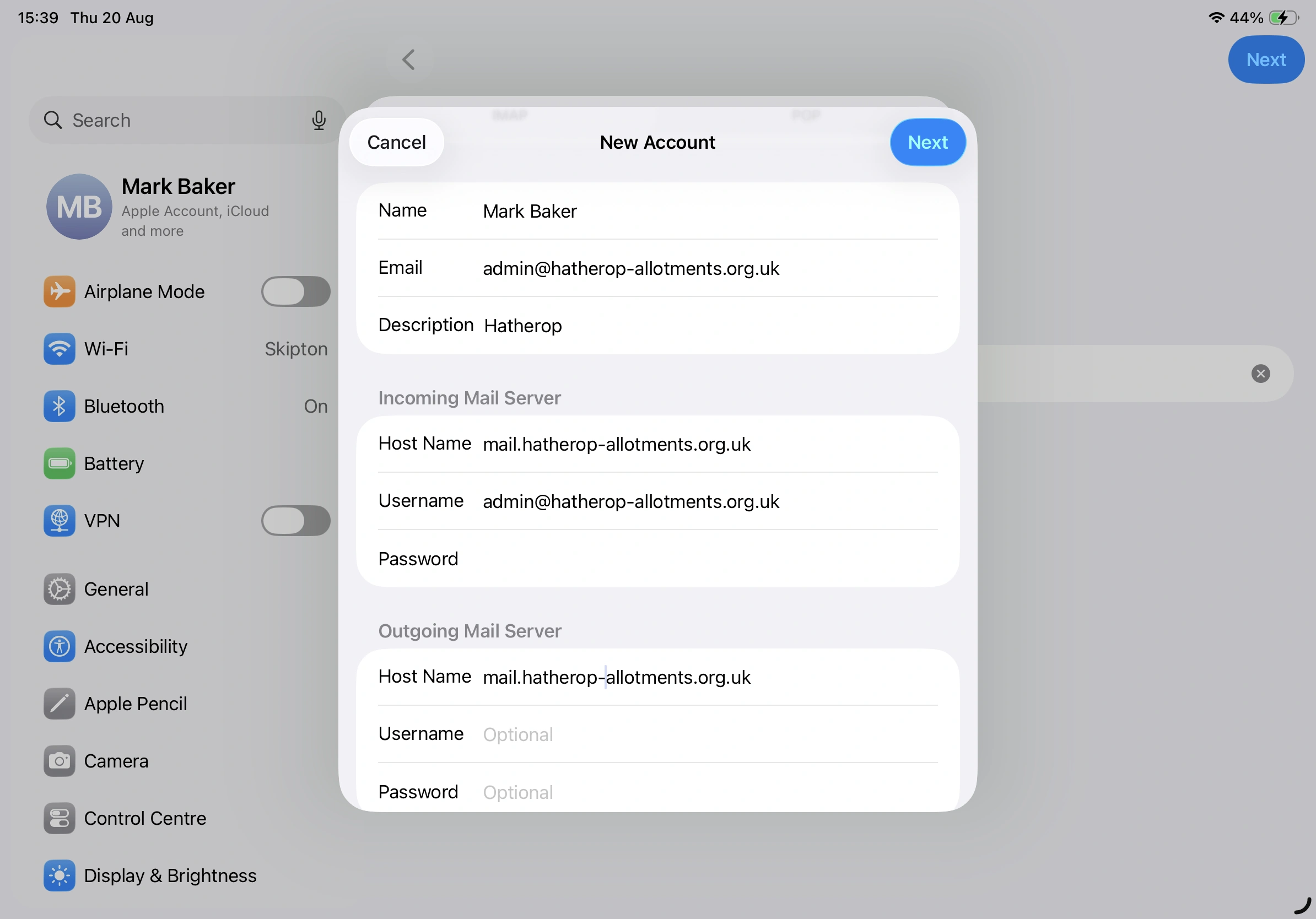
On the IMAP settings:
- Change the Description if you prefer something simpler or different (I used Hatherop here)
- Put your email address in the Username field
- Put mail.hatherop-allotments.org.uk in both the Incoming and Outgoing Host Name fields
- Leave the Outgoing username and password blank
- Select Next
It will now verify that the settings are correct, which takes about 15sec.
Select Save.
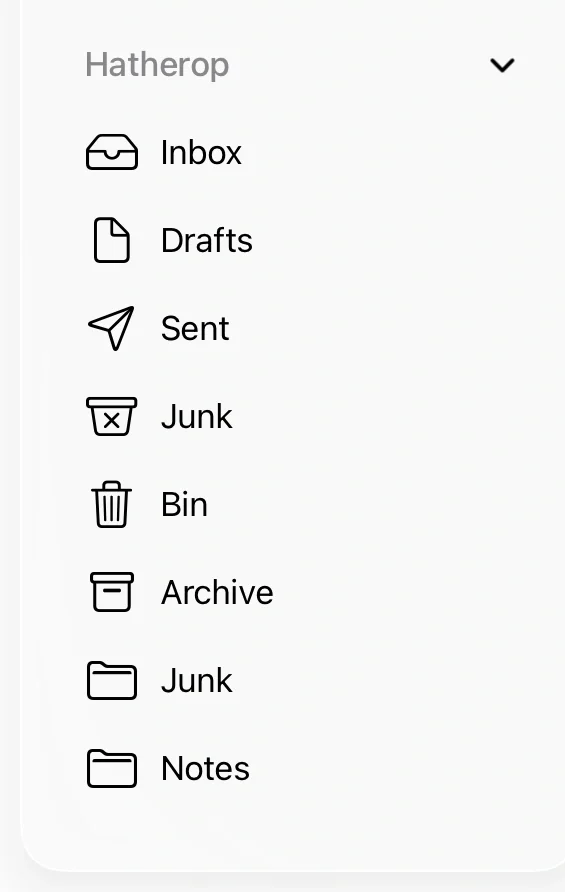
Open your Mail app and you should see an folder for hatherop-allotments.org.uk. You can change the label for this in Settings if you prefer something else.
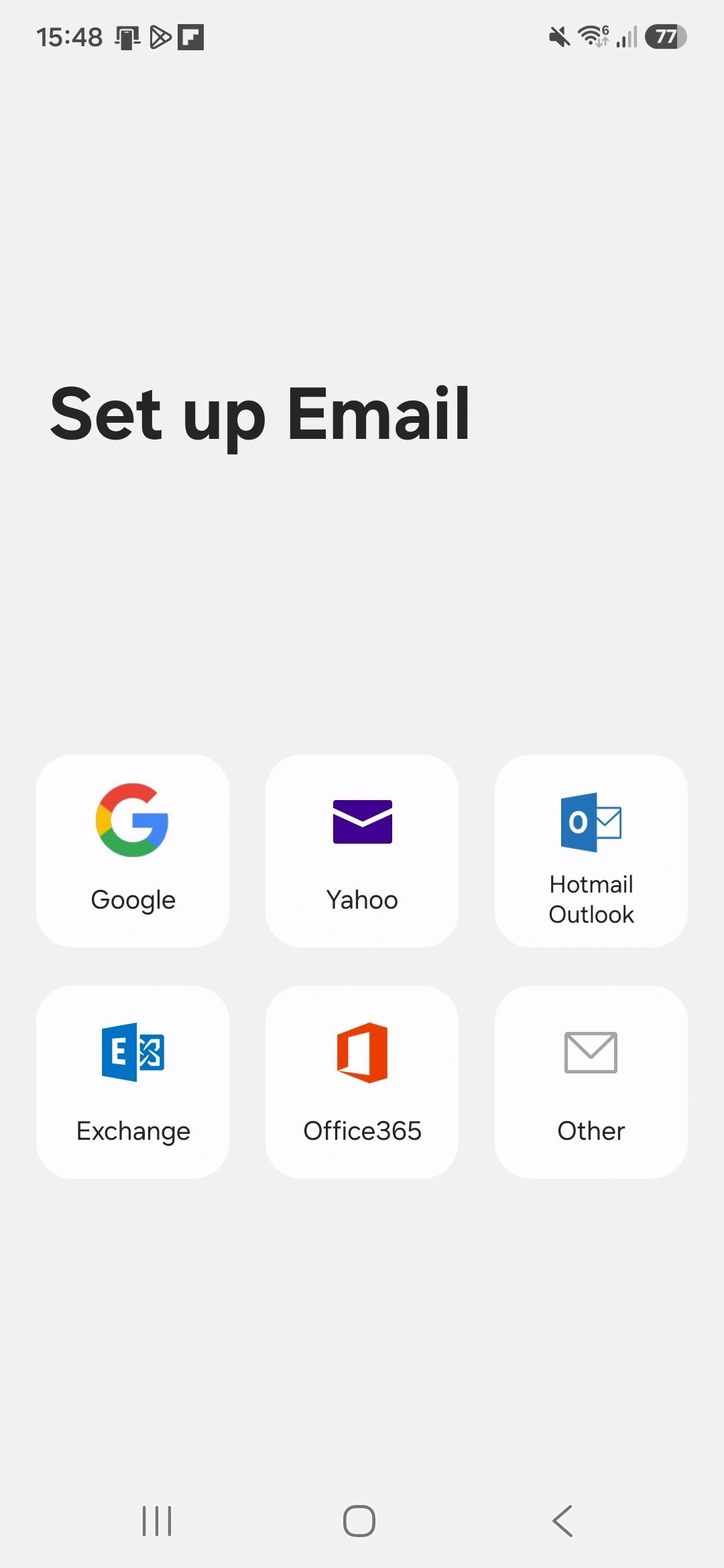
I use a Samsung so am going to show this using the Samsung Mail client. Other email clients should be very similar.
Open the app and select Other.
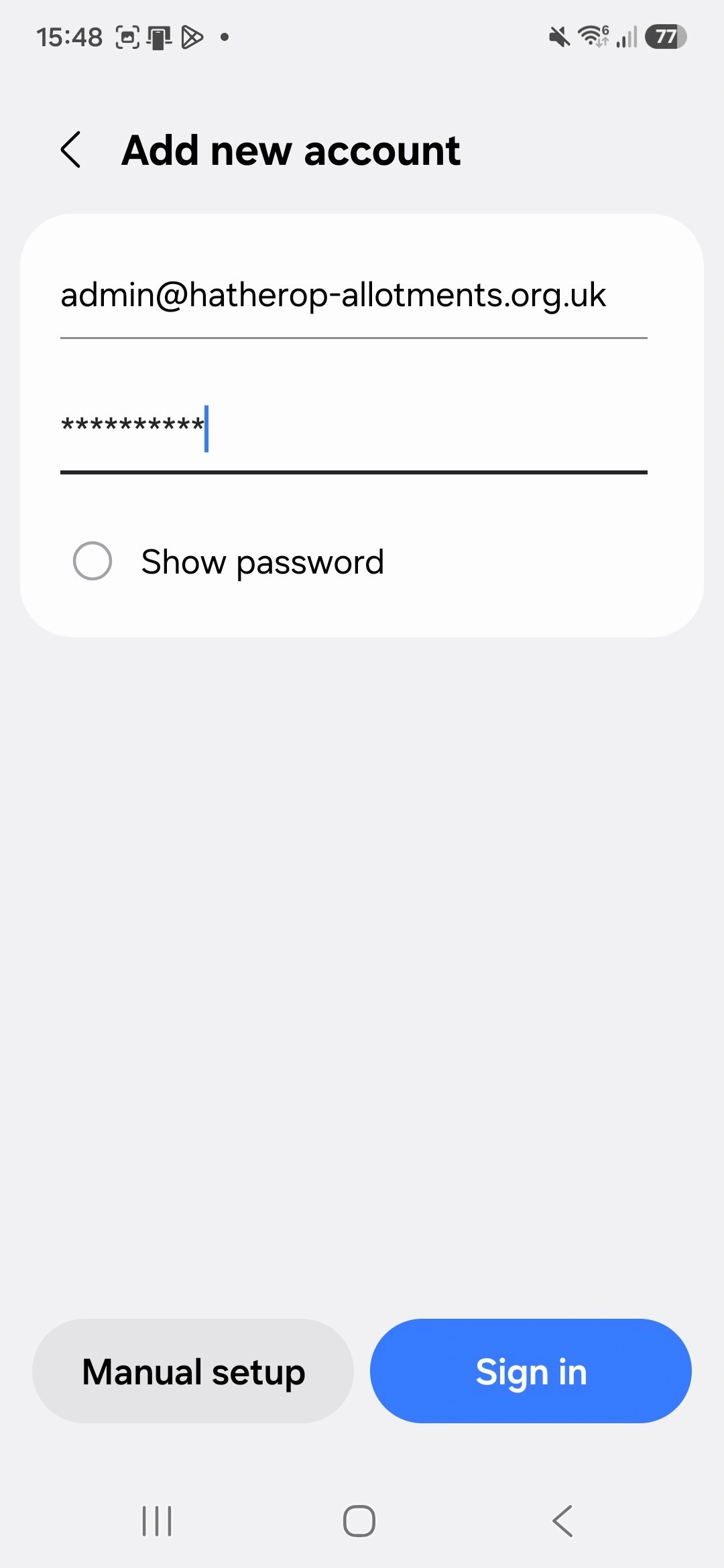
Put in your email address and password and select Sign In.
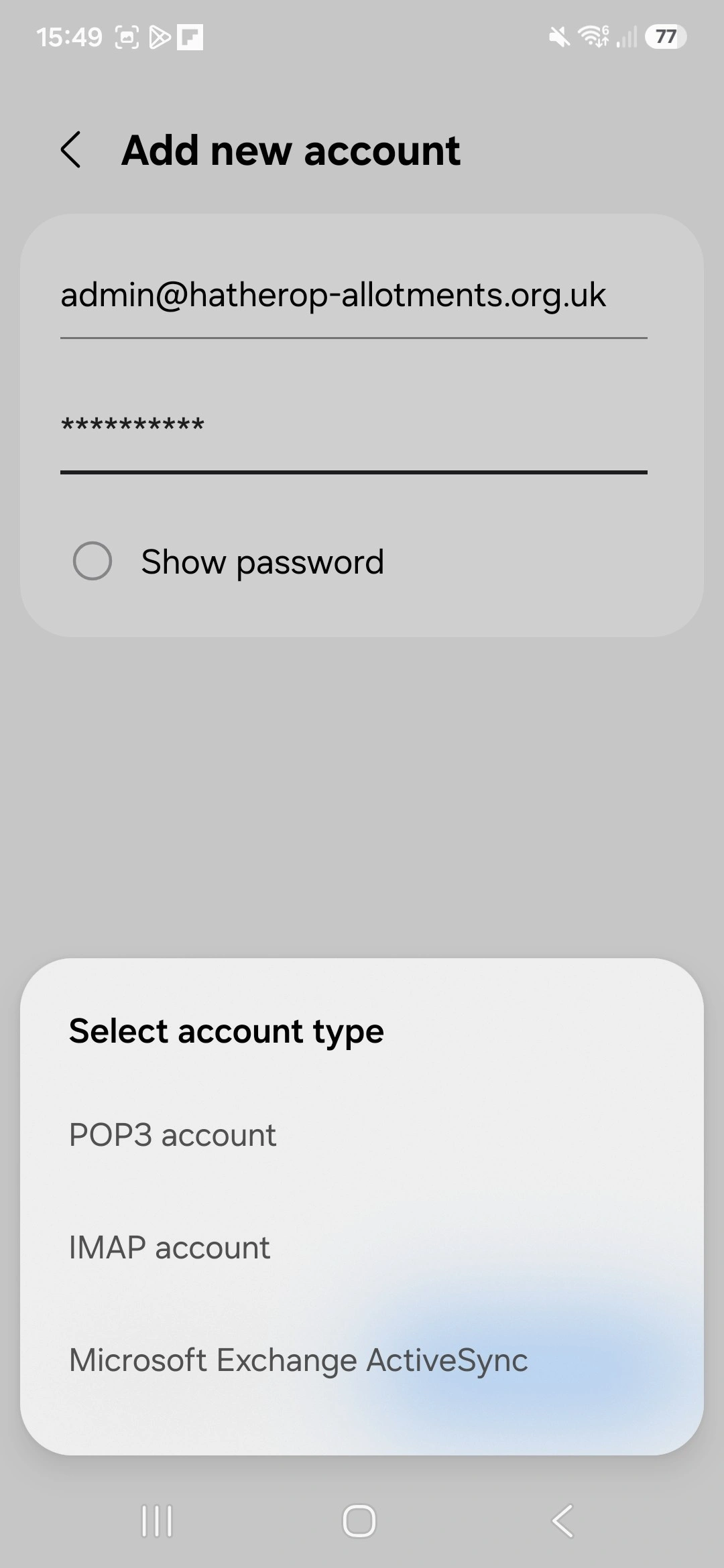
Select IMAP account.
Use the following Server Settings:
- Incoming
- IMAP Server: mail.hatherop-allotments.org.uk
- Security type: SSL
- Port: 993
- IMAP path prefix: leave blank
- Outgoing
- SMTP server: mail.hatherop-allotments.org.uk
- Security type: SSL
- Port: 465
- Require authentication to send emails: On
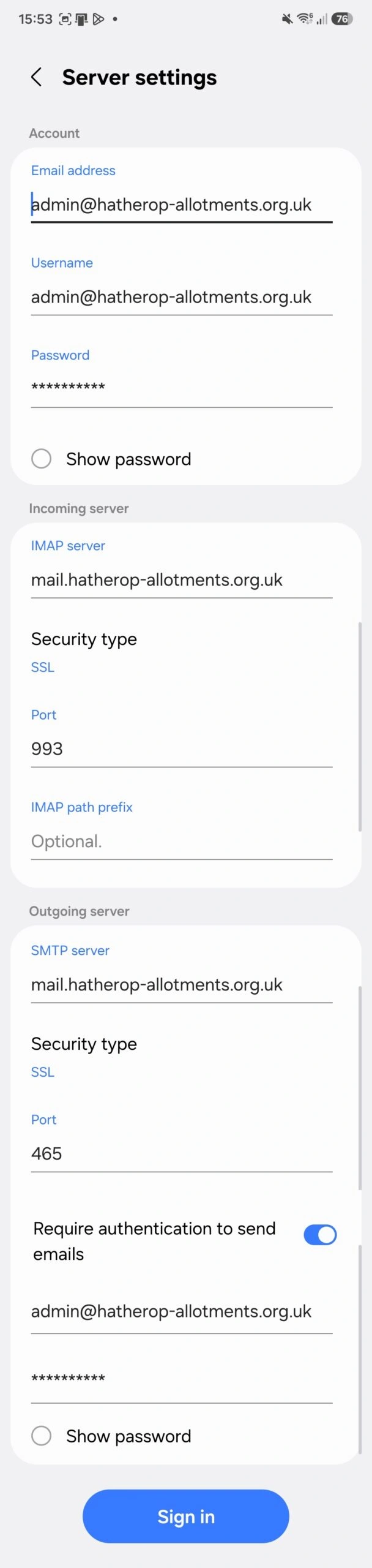
Select Sign in.
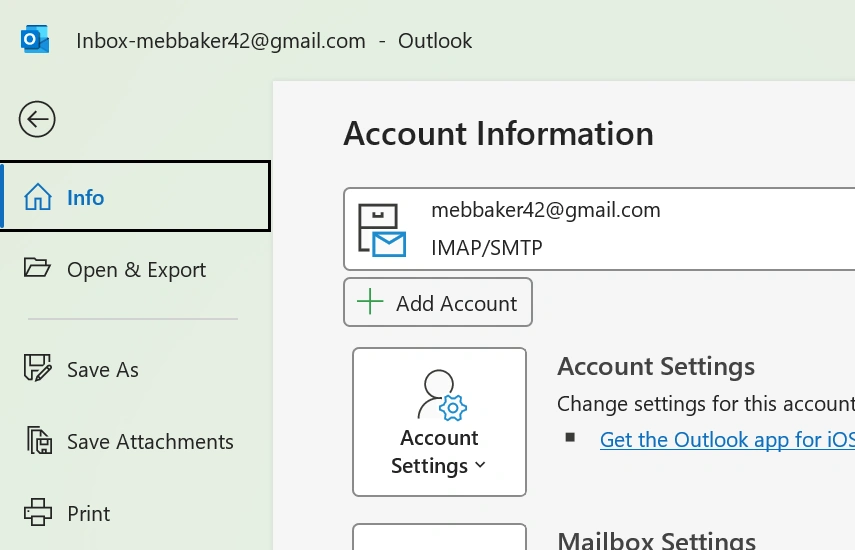
If you have a Microsoft 365 license then you have access to classic Outlook and can use that with your Hatherop email account.
Got to File and then select Add Account.
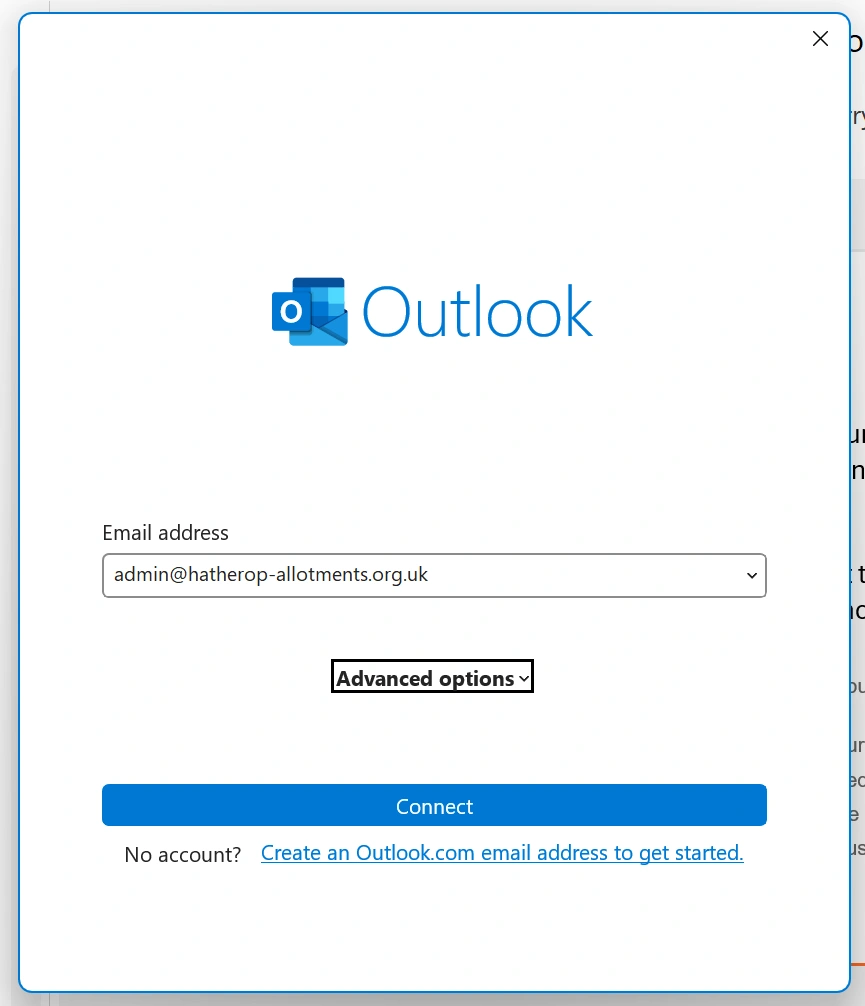
Put in your email address and select Connect.
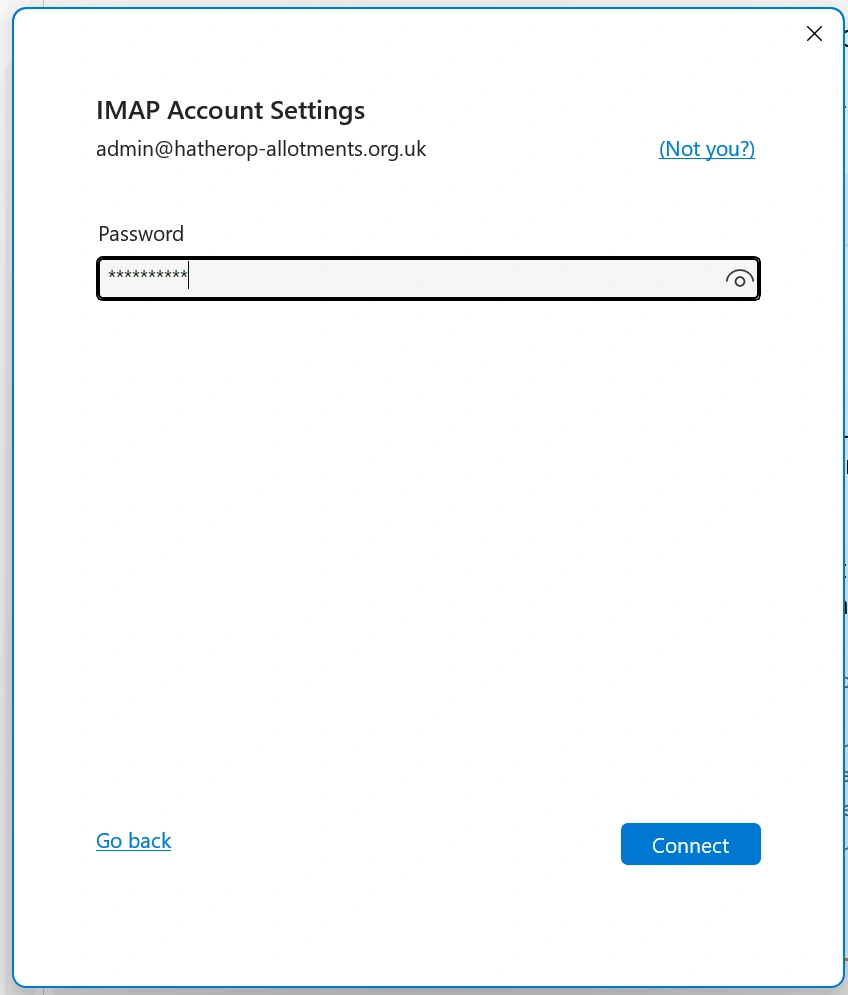
Put in your password and select Connect.
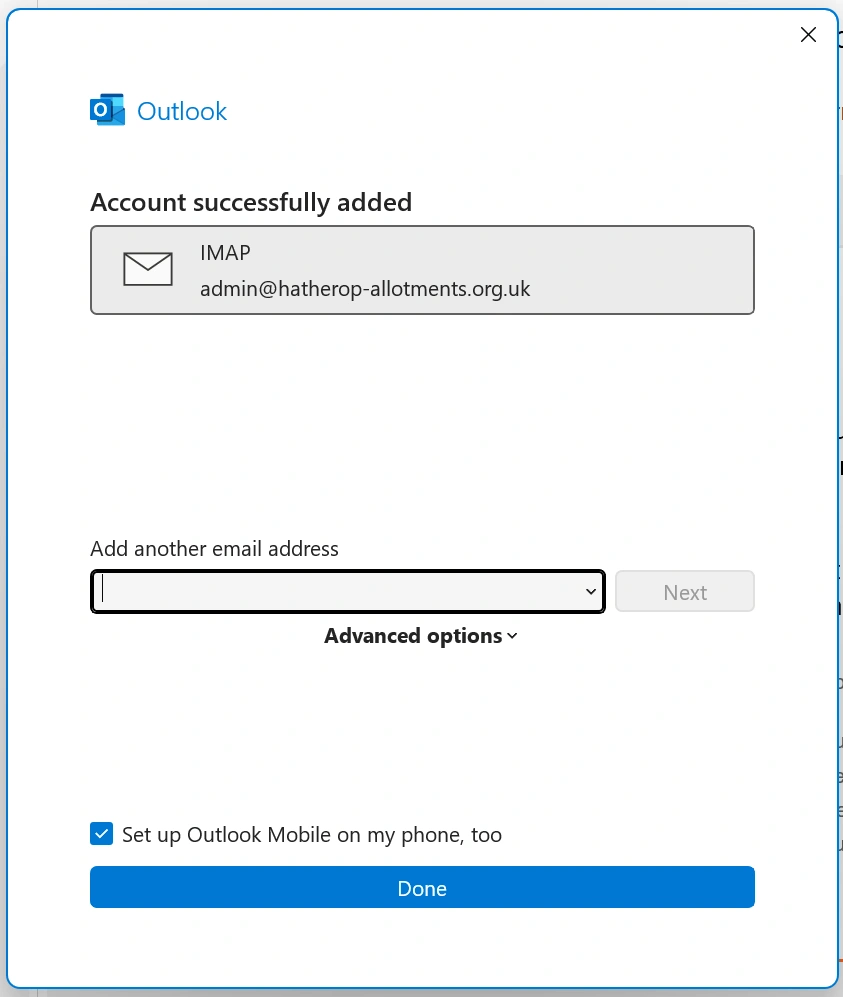
Click Done.
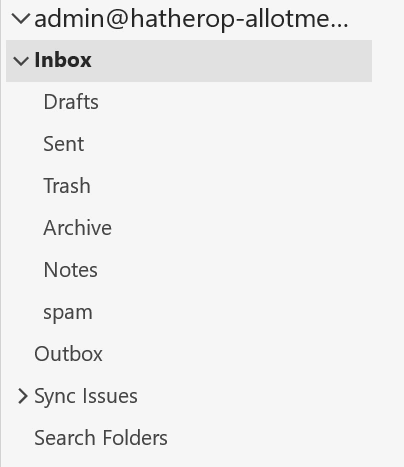
You’ll find your Hatherop folder in the left hand pane of Outlook.
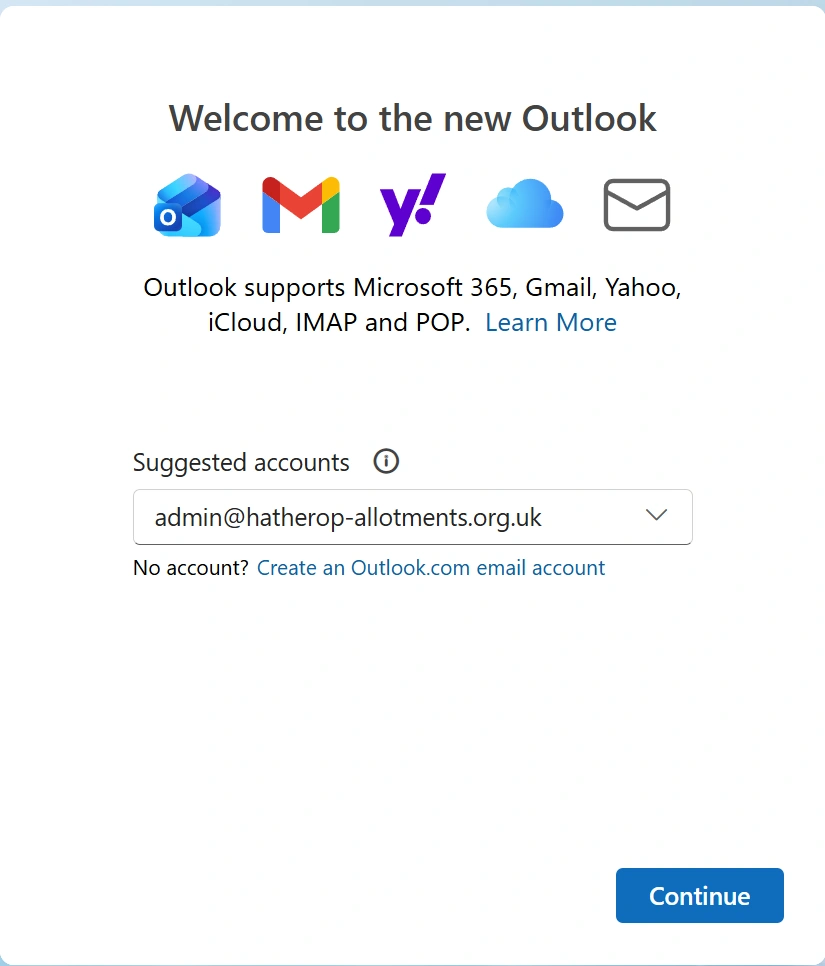
The basic Outlook email client that comes with Windows 11 also works with your Hatherop email account.
Put in your email address and select Continue.
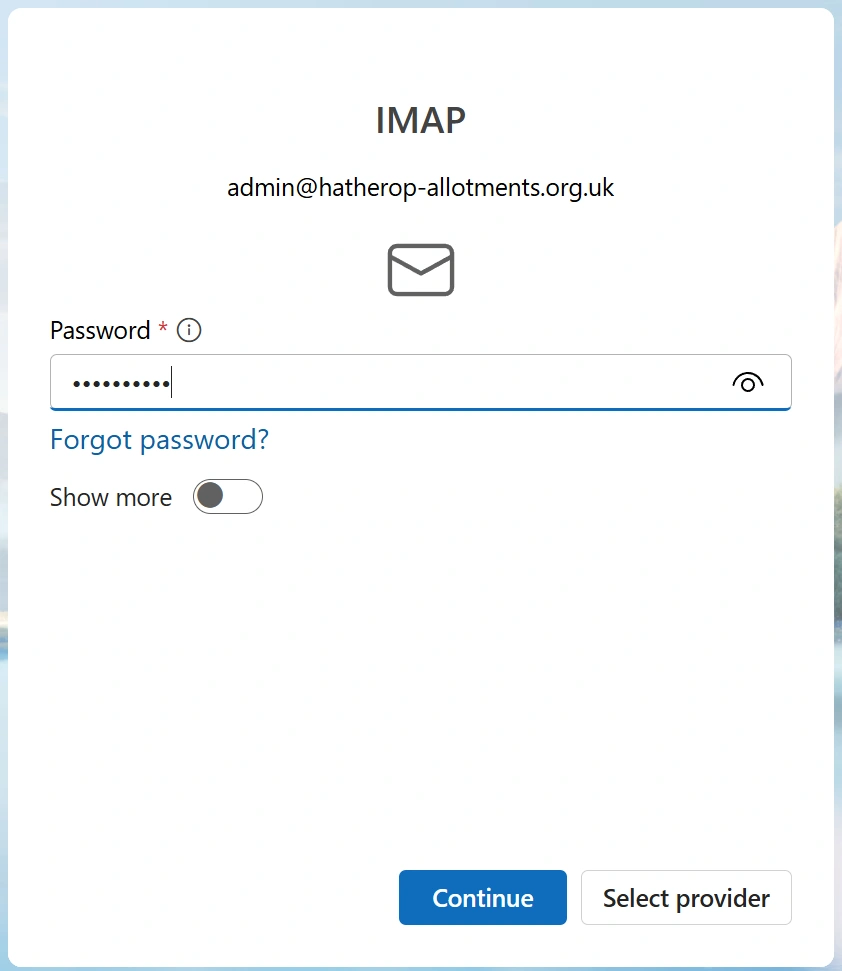
Enter your password and select Continue.
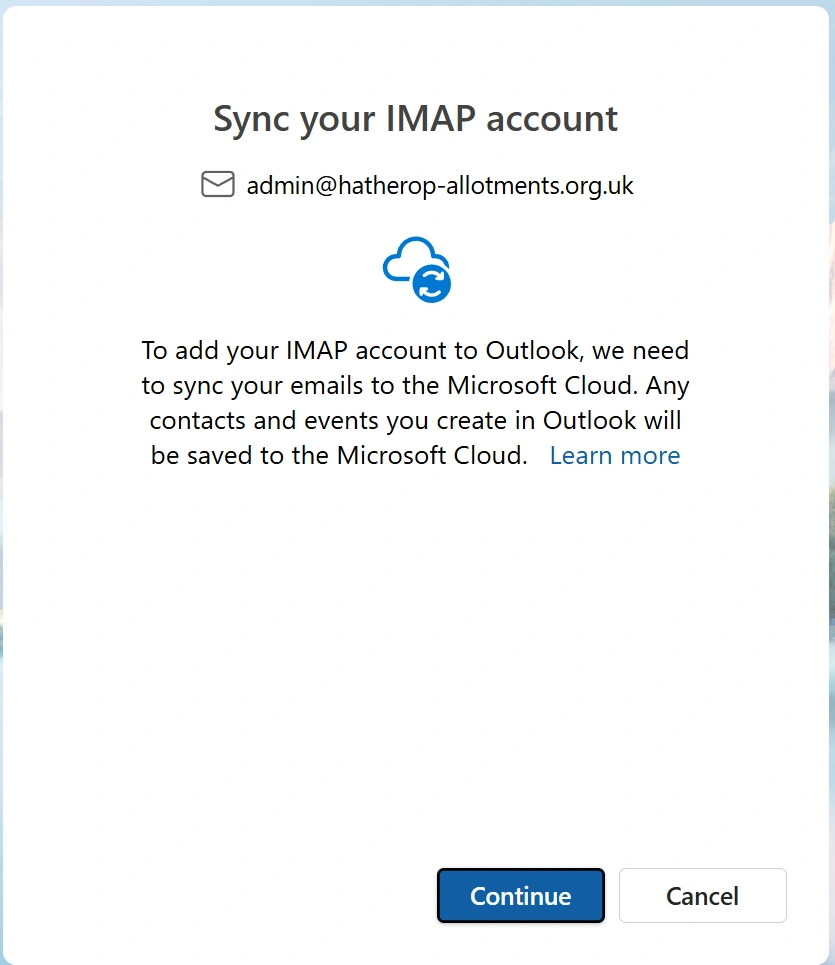
Select Continue.
After about 15sec it should open Outlook with your new email account showing.